📝 产品详情
AsiaSessionRange
| 作者 | David Ramirez Rodriguez |
| 版本 | v6 |
| 激活数 | 10 |
| 原价 | $49 USD |
AsiaSessionRange-Socarix-STS
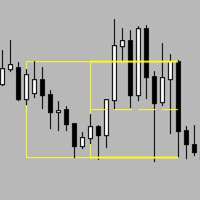
AsiaSessionRange-Socarix-STS clearly displays the Asian session range, highlighting High, Low and the 50% midpoint, with optional level extension to a user-defined time.
Default preset is 23:00–07:00 Madrid time, with optional Auto Madrid DST (EU rule). Fully customizable hours and colors, works on any symbol and timeframe. A visual session-level tool; it does not provide trading signals.
AsiaSessionRange-Socarix-STS is a session-based visual indicator designed to clearly display the Asian session range, highlighting the High, Low, and the 50% midpoint.
It also allows you to extend these levels to a user-defined time, providing clean and objective intraday reference zones.
This tool is ideal for traders who use the Asian range as a daily structure framework, balance zone, and a liquidity reference before later session expansions.
Key features
-
Draws a clean session range rectangle.
-
Displays and extends:
-
High
-
Low
-
50% (Midpoint)
-
-
Fully customizable hours to match any session or trading plan.
-
Customizable colors to fit any chart template.
-
Configurable historical sessions.
-
Lightweight object-based indicator (no buffers).
Default preset
The indicator ships with the classic Asian session template:
-
23:00 – 07:00 Madrid time
-
With optional Auto Madrid DST (EU rule) enabled.
Time zone setup
If you trade outside Spain or prefer a different reference:
-
Disable Auto Madrid DST
-
Set Reference GMT offset to your local time zone
-
Adjust the session hours as desired (e.g., 00:00–08:00)
This keeps the default preset intact while making the indicator flexible for worldwide users.
Typical use
-
Defining the Asian range as an intraday structure reference.
-
Spotting post-range expansions.
-
Using High / Low / 50% as clean reaction levels and liquidity reference zones.
Inputs
-
Range start hour
-
Range end hour
-
Extend lines until
-
Range color
-
Auto Madrid DST (optional)
-
Reference GMT offset (manual mode)
-
Historical days to draw
Notes
-
Ranges are drawn only when market data is available.
Weekends/holidays may result in fewer visible sessions. -
Visual analysis tool.
Disclaimer
This indicator does not provide buy/sell signals and does not guarantee results.
It is designed to deliver objective session-based levels for market context.
FAQs (EN)
1) Why do I see fewer than 7 ranges with 7 days selected?
The indicator draws ranges only when market data is available. Weekends/holidays may reduce the number of visible sessions.
2) Does it work on any instrument?
Yes, on any symbol with sufficient historical data.
3) Can I use it for other sessions or custom hours?
Yes. You can fully customize the start/end time for any session.
4) What does Auto Madrid DST do?
It automatically adjusts the reference time between winter/summer using the EU rule, keeping the range aligned with real Madrid time.
5) Does it provide buy/sell signals?
No. It is a visual session-level tool for market context.
Quick installation guide (MT5)
Option 1: Install from MetaTrader 5 (recommended)
-
Open MetaTrader 5.
-
Go to the Market tab inside the platform.
-
Log in with your MQL5 account.
-
Search for AsiaSessionRange-Socarix-STS.
-
Click Buy / Download / Install (depending on your case).
-
Open Navigator → Indicators and find the indicator.
-
Drag it onto a chart or double-click it.
-
Adjust inputs if needed.
Option 2: If you purchased it on the MQL5 website
-
Open MetaTrader 5.
-
Log in with the same MQL5 account used for the purchase.
-
Go to Navigator → Market → Purchased.
-
Select the indicator and click Install.
-
Attach it to your chart.
If it doesn’t show up
-
Restart MT5.
-
Right-click the Navigator panel and choose Refresh.
-
Make sure you’re logged into the correct MQL5 account.
安全须知
本产品仅通过 MQL5.com 官方渠道获取。其他渠道版本可能缺少完整功能和技术支持。
EA 配置
| 交易品种 | XAUUSD |
| 时间框架 | H1 (推荐) |
| 推荐经纪商 | IC Markets, IC Trading |
| 最低存款 | $300 / 0.01手 |
📸 截图预览