📝 产品详情
Meta Trader Trade Journal
| 作者 | Ryland Russell John |
| 版本 | v2.10 |
| 更新 | 2026-03-06T10:01:20 |
| 激活数 | 78603 |
Everything you need to get your MetaTrader Trade Journal running perfectly.
https://mt-trade-journal.com/free/download/install.mp4 Full Install Video here
Step 1 — Configure MetaTrader WebRequests
To allow the EA to sync your data, you must authorize these URLs. In your MT4/MT5 terminal, go to Tools → Options → Expert Advisors and check "Allow WebRequest for listed URL". Add these four entries:
Step 2 — Trade History Sync
Once the EA is attached to a chart, allow it time to perform a Full Resync. It will scan your historical data and upload it to the secure dashboard[cite: 53, 63].
Step 3 — Access Your Dashboard
Navigate to: http://165.245.187.4:8080
Log in using the Email Address you entered in the EA input settings[cite: 5, 41].
Dashboard Features Guide
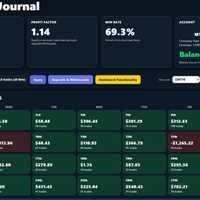
- Summary Cards: Track your ROI, Profit Factor (trading only), and Win Rate at a glance.
- Calendar Navigation: Use arrows to browse months. Click any day tile to see specific trades for that date. Today is highlighted for easy tracking.
- Range Filtering: Quickly toggle between Today, This Week, This Month, or set a Custom Period.
- Time Zone Selector: Adjust how timestamps appear without changing your underlying trade data.
- Cash Movements: View Deposits & Withdrawals in a separate popup to keep your trade performance metrics clean[cite: 9, 45].
Trades Table
The detailed list below the calendar provides a full breakdown of every execution, including Symbol, Side, Volume, and individual P&L[cite: 44, 48].
安全须知
本产品仅通过 MQL5.com 官方渠道获取。其他渠道版本可能缺少完整功能和技术支持。
EA 配置
| 交易品种 | XAUUSD |
| 时间框架 | H1 (推荐) |
| 推荐经纪商 | IC Markets, IC Trading |
| 最低存款 | $300 / 0.01手 |
📸 截图预览